


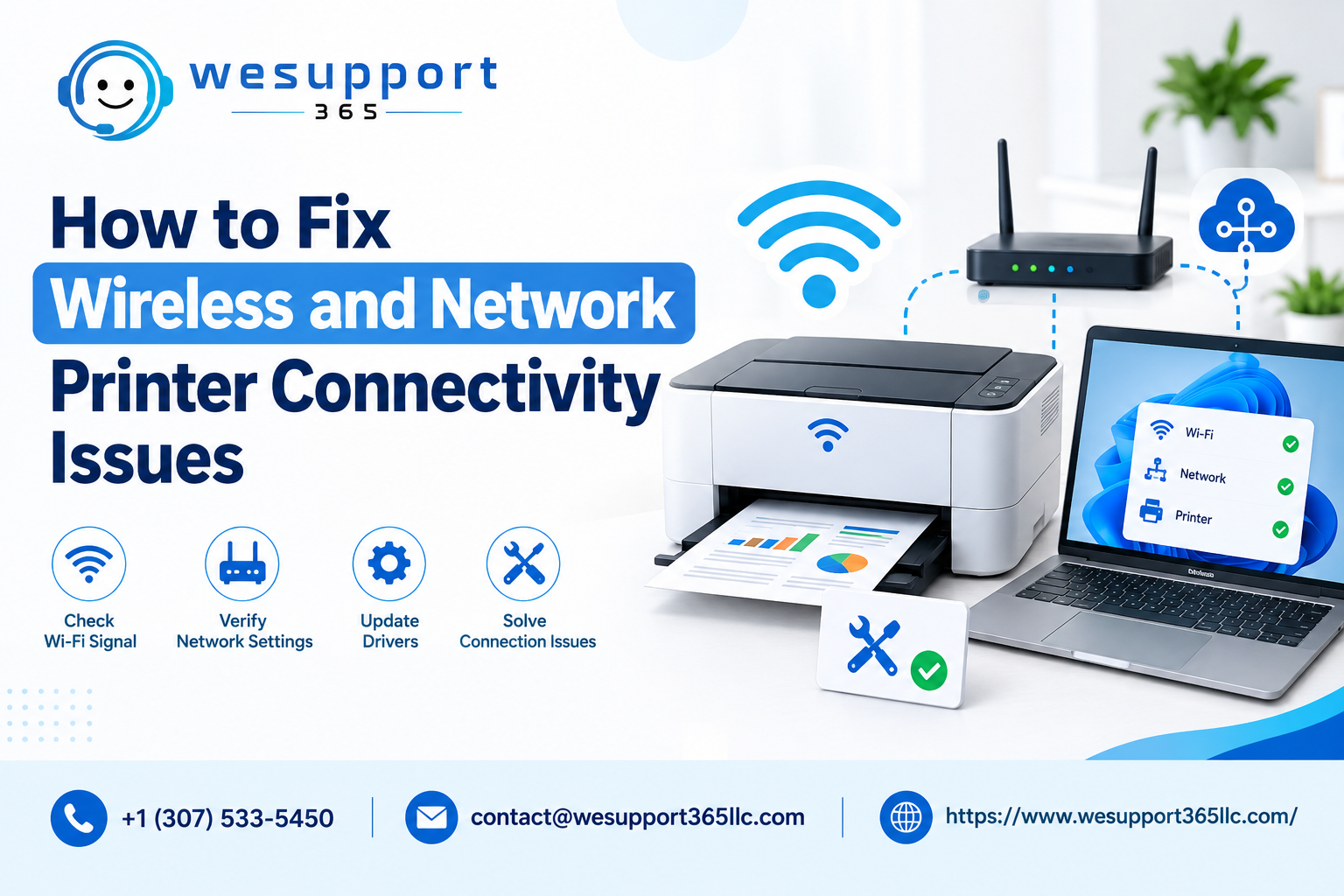
Wireless and network printers make printing convenient by allowing computers, laptops, tablets, and other devices to send documents without requiring a direct cable connection. However, when a printer suddenly stops communicating with your device, printer connectivity issues can make printing frustrating. Fortunately, you can often resolve these problems with a few simple troubleshooting steps. This guide explains common causes, practical solutions, and preventive tips to help keep your printer working reliably.
Why Does a Wireless Printer Lose Connection?
A wireless printer depends on several components working together. Your printer, computer, router, and wireless network must communicate correctly. If one part experiences a problem, printing may stop.
Common causes include a weak Wi-Fi signal, incorrect network settings, outdated drivers, router problems, printer sleep settings, or changes to the wireless network. A recently changed Wi-Fi password can also prevent the printer from reconnecting.
Understanding the possible cause makes troubleshooting much easier. Instead of repeatedly restarting the printer, check each part of the connection systematically.
1. Check the Printer's Network Status
Start by checking the printer's display panel or network settings. Many modern printers have a wireless indicator that shows whether the device is connected.
If the wireless icon is missing, flashing, or showing an error, the printer may not be connected to your network.
Open the printer's network or Wi-Fi settings and confirm that it is connected to the correct wireless network. If you recently changed your router name or password, you may need to reconnect the printer using the new information.
Also, make sure the printer is within a reasonable range of your router. A printer located behind walls, inside cabinets, or far from the router may receive a weak signal.
2. Restart Your Devices
A simple restart can resolve temporary communication problems.
Turn off the printer and unplug it for about 30 seconds. Restart your computer or laptop as well. Then restart your router and allow it a few minutes to reconnect to the internet.
Once everything is back online, turn on the printer and wait until it finishes starting up. Check whether your computer can detect the printer.
Restarting clears temporary network conflicts and can restore communication without requiring complicated configuration changes.
3. Make Sure Both Devices Use the Same Network
One of the most common causes of wireless printing problems is that the printer and computer are connected to different networks.
For example, your computer may be connected to your primary home network while the printer is connected to a guest network. Although both networks provide internet access, devices on separate networks may not be able to communicate with each other.
Check the Wi-Fi name displayed on both devices. If they are different, reconnect the printer or computer to the appropriate network.
Some routers also provide separate 2.4 GHz and 5 GHz networks. Certain printers work more reliably with 2.4 GHz connections, so check your printer's specifications before changing network settings.
4. Move the Printer Closer to the Router
Distance can significantly affect wireless performance. A printer that is too far from the router may repeatedly disconnect or appear offline.
Try moving the printer closer to your router temporarily. If the connection becomes stable, weak wireless coverage may be the underlying problem.
Large appliances, thick walls, metal objects, and other electronic devices can also interfere with wireless signals. Positioning the router and printer in open areas can help improve communication.
If moving the printer is inconvenient, a properly configured Wi-Fi extender or mesh network may provide better coverage.
5. Remove and Re-add the Printer
If your computer still cannot communicate with the printer, removing and adding the device again may solve the problem.
Open your computer's printer settings and locate the affected device. Remove it from the list, then restart the computer if necessary.
Next, select the option to add a new printer. Allow the operating system to search for available devices and select your printer when it appears.
Re-adding the printer can refresh its connection information and eliminate outdated configuration details.
6. Check Printer Drivers and Software
Printer drivers allow your computer's operating system to communicate properly with the hardware. An outdated, damaged, or incompatible driver can cause communication failures.
If the printer appears connected but documents remain stuck in the print queue, check whether the appropriate driver is installed.
Download drivers and printer software only from the manufacturer's official support resources. Select the version that matches your operating system and printer model.
After installation, restart the computer and test the printer with a small document.
7. Clear the Print Queue
Sometimes the network connection is working correctly, but a previous print job is preventing new documents from being processed.
Open the printer's queue and look for documents that are paused, failed, or stuck. Cancel unnecessary jobs and send a new test document.
If the queue repeatedly becomes stuck, restarting the print spooler service or restarting the computer may help.
Avoid sending the same document repeatedly while troubleshooting because multiple copies may eventually print once the connection is restored.
8. Check Your Router Settings
Router settings can affect communication between devices. Certain security or isolation features may prevent computers from communicating with wireless printers.
Check whether guest network isolation, client isolation, or similar features are enabled. If they prevent local devices from communicating, the printer may remain inaccessible even though it has internet access.
If you are unsure which setting to change, consult your router's documentation or contact technical support. Avoid changing advanced network settings without understanding their purpose.
9. Verify the Printer's IP Address
Network printers are commonly assigned an IP address by the router. If that address changes, your computer may have difficulty locating the printer.
Print a network configuration report from the printer if the feature is available. Compare the displayed network information with your computer's current network.
If the printer repeatedly receives a different address, advanced users may consider configuring a reserved IP address through the router. This can make the printer easier to locate consistently on the network.
10. Temporarily Check Firewall or Security Software
Computer security software can occasionally interfere with local network communication.
If everything appears correctly configured but the printer remains inaccessible, firewall settings may be worth checking. However, do not permanently disable security protection just to make the printer work.
Instead, review whether your firewall allows printer discovery and local network communication. If you are uncertain, use the security software's official documentation or seek professional assistance.
When to Seek Professional Help
If basic troubleshooting does not restore communication, the problem may involve more advanced network configuration, damaged drivers, router settings, or hardware issues.
Professional technical support can help identify whether the issue originates from the printer, computer, router, or network environment. This can save time and prevent unnecessary changes that could create additional problems.
WeSupport365 can assist users with printer setup, network configuration, device connections, troubleshooting, and other technology-related needs.
How to Prevent Future Printer Connection Problems
Once your printer is working again, a few simple practices can reduce future interruptions.
Keep your printer software and drivers updated. Place the printer where it can receive a stable wireless signal. Avoid frequently changing your Wi-Fi name or password unless necessary.
You should also restart your router periodically if you experience recurring network problems and keep track of your printer's network configuration.
For households or offices with multiple wireless devices, maintaining a reliable network environment can make a significant difference.
Final Thoughts
Wireless printing is convenient, but connectivity can sometimes fail because of network changes, weak signals, outdated software, or configuration conflicts. By checking the network connection, restarting equipment, verifying Wi-Fi settings, updating drivers, and reviewing printer configuration, many problems can be resolved without replacing the printer.
If you are experiencing Printer Connection Issues, start with the basic checks before moving to advanced troubleshooting. When the problem continues, professional assistance can help identify the underlying cause.
For recurring printer connection issues, checking the router, printer network settings, drivers, and computer configuration together is usually more effective than focusing on only one device.
With the right troubleshooting approach, printer connectivity issues can often be resolved quickly, helping you get back to reliable printing at home or in the office.