


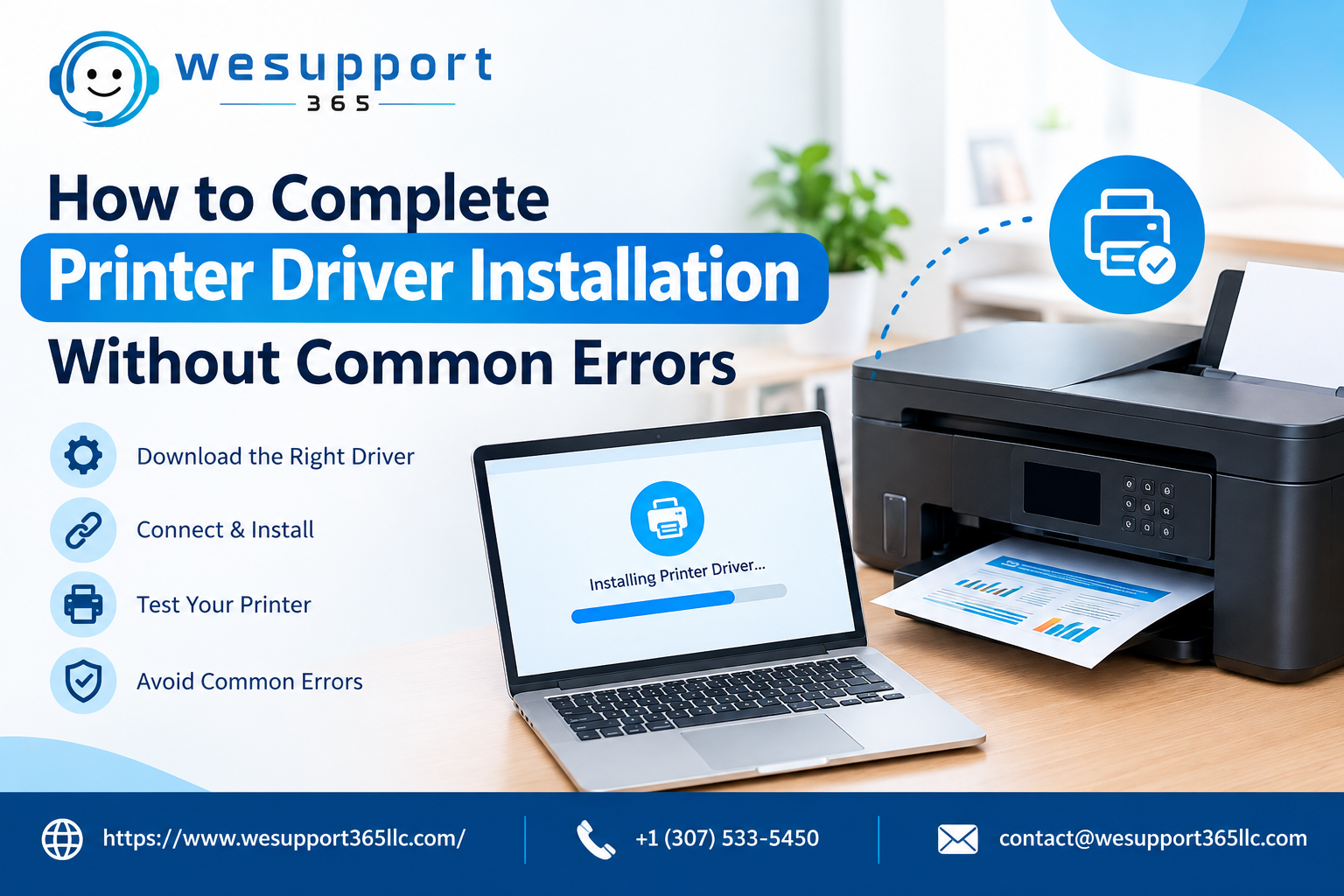
Setting up a printer should be simple, but the process can become frustrating when the correct software is not installed properly. Printer Driver Installation is an important part of establishing communication between your computer and printer. Following the correct steps from the beginning can help prevent printing problems, connection errors, and unnecessary troubleshooting later.
Why Printer Drivers Matter
A printer driver acts as an interface between your computer and printer. When you send a document to print, the driver helps translate the information into instructions that the printer can understand.
Without the correct driver, your computer may not recognize the printer properly. Some printer features may also become unavailable, while error messages or documents stuck in the print queue may appear.
Modern printers are designed to work with different operating systems and devices. Therefore, selecting the appropriate software for your computer is an important part of the setup process.
Check Your Printer Before Starting
Before installing anything, take a few minutes to check your printer and computer. Find the exact model number of your printer and identify the operating system installed on your computer.
For example, Windows and macOS may require different driver packages or installation procedures. Some modern printers can automatically download the required software, while others may require manual installation.
You should also check how the printer will connect to your computer. It may use a USB cable, Wi-Fi connection, or another supported connection method.
If you are setting up a printer for the first time, professional Printer Setup Services can help ensure that the necessary software and device settings are configured correctly.
Download the Correct Driver
One of the most common installation mistakes is downloading software intended for a different printer model. Even printers from the same manufacturer may require different drivers.
Always identify the exact printer model before downloading any software. Whenever possible, download the driver from the printer manufacturer's official website or another trusted source.
It is also important to check your operating system version. Installing an outdated or incompatible driver can cause installation failures, limited functionality, or unexpected printing problems.
Avoid downloading printer drivers from unfamiliar websites simply because they appear in search results. Untrusted downloads may contain unwanted software or files that can create additional security and performance issues.
Remove Conflicting Software When Necessary
If the printer has previously been connected to your computer, an older driver may already be installed. In some cases, existing software can conflict with a new installation.
If you are replacing an old printer or reinstalling the software, check your installed applications and printer settings first. Removing outdated printer software may help create a cleaner installation environment.
However, avoid removing system files or unrelated printer components unless you understand their purpose. If you are unsure about what should be removed, professional technical assistance can help prevent accidental configuration problems.
Follow the Installation Instructions Carefully
After downloading the correct software, start the installation process and follow the instructions displayed on your screen.
Some installation programs require you to connect the printer at a specific stage. Connecting the printer too early or too late may prevent the installation software from detecting the device correctly.
Allow the installer to complete each step before moving forward. Avoid shutting down your computer or disconnecting the printer while important files are being installed.
After the installation is complete, restart your computer if the software recommends doing so. A restart can help newly installed components load correctly.
Connect the Printer to Your Computer
The connection method can affect how successfully your computer identifies the printer.
For USB printers, make sure the cable is securely connected to both the printer and computer. If the printer uses Wi-Fi, confirm that both the printer and computer are connected to the appropriate network.
If the printer is not recognized, check the cable, wireless connection, printer display, and computer settings before attempting to reinstall the software.
A professional Printer Installation Service can be especially useful when setting up multiple devices, network printers, or printers across business workstations.
Test the Printer After Installation
Do not assume that the installation is complete simply because the software has finished installing. Always perform a test print.
Open your computer's printer settings and confirm that the correct printer appears as an available device. Then print a test page or a simple document.
Check the printed page for alignment, text quality, missing elements, and unexpected formatting.
Testing the printer immediately can help identify potential problems while the installation details are still fresh, making troubleshooting easier.
What to Do If the Printer Appears Offline
Sometimes a properly installed printer may still appear offline. This does not necessarily mean that the driver is damaged.
Start by checking whether the printer is powered on and connected to the correct network. For wireless printers, make sure the device has not accidentally connected to another network.
You can also check your computer's printer settings and print queue. Canceling stuck print jobs and restarting the printer may sometimes restore normal operation.
If the problem continues, a Printer Offline Fix may involve checking network settings, device status, default printer configuration, or communication between the computer and printer.
Troubleshooting Common Installation Errors
Several issues can occur during or after installation. Your computer may fail to detect the printer, the installer may display an error message, or printing may stop unexpectedly.
Start with these basic checks:
Confirm the printer model.
Verify operating system compatibility.
Check the physical or wireless connection.
Restart the printer and computer.
Remove stuck print jobs.
Confirm that the correct printer is selected.
Check for available driver updates.
If the problem started immediately after a driver update, reviewing recently installed software may provide useful clues.
Avoid repeatedly installing different driver packages without first identifying the actual cause of the problem. Doing so can create additional software conflicts and make troubleshooting more complicated.
When Remote Assistance Can Help
Not every printer problem requires an in-person visit. If your computer has an internet connection and the issue involves software or settings, remote assistance may be a convenient option.
A technician can review printer settings, check installed software, identify connection problems, and guide you through appropriate troubleshooting steps.
Remote Printer Setup can also be useful when a printer needs to be configured on a computer located in another room, office, or supported remote environment.
Before providing remote access, make sure you are working with a trusted support provider and understand what type of access is being provided.
Preventing Future Printer Problems
Once your printer is working correctly, a few simple practices can help reduce future problems.
Keep the printer software updated when appropriate, avoid installing drivers from unknown sources, and keep a record of your exact printer model for future reference.
It is also useful to monitor the printer's network connection if it operates wirelessly. Changes to your router, Wi-Fi password, or network configuration can affect printer communication.
If recurring Printer Connection Issues occur, look beyond the driver itself. The problem could involve the network, cable, computer settings, firewall configuration, or printer hardware.
When Professional Support Is Useful
Printer setup can become more complicated when several computers, wireless devices, or business networks are involved. Professional assistance can save time when basic troubleshooting does not resolve the issue.
Experienced Printer Support Services can help identify software conflicts, connection problems, configuration errors, and other issues that affect everyday printing.
Professional assistance can also be useful for users who are uncomfortable changing system settings or installing device software themselves.
Final Thoughts
A successful printer installation begins with selecting the correct driver and following the installation process carefully. Verifying the printer model, checking operating system compatibility, using reputable software sources, and performing a test print after installation can help prevent many common problems.
If an issue occurs, avoid making multiple changes at the same time. Start by checking the connection, software, and printer settings step by step. This systematic approach makes it easier to identify the source of the problem and restore reliable printing.